
Step 1
An online appointment needs a link to the video call. The client gets it by email once the appointment is confirmed. Kwazi uses the team member’s own meeting link, or the link you fill in on the appointment itself.
Step 2
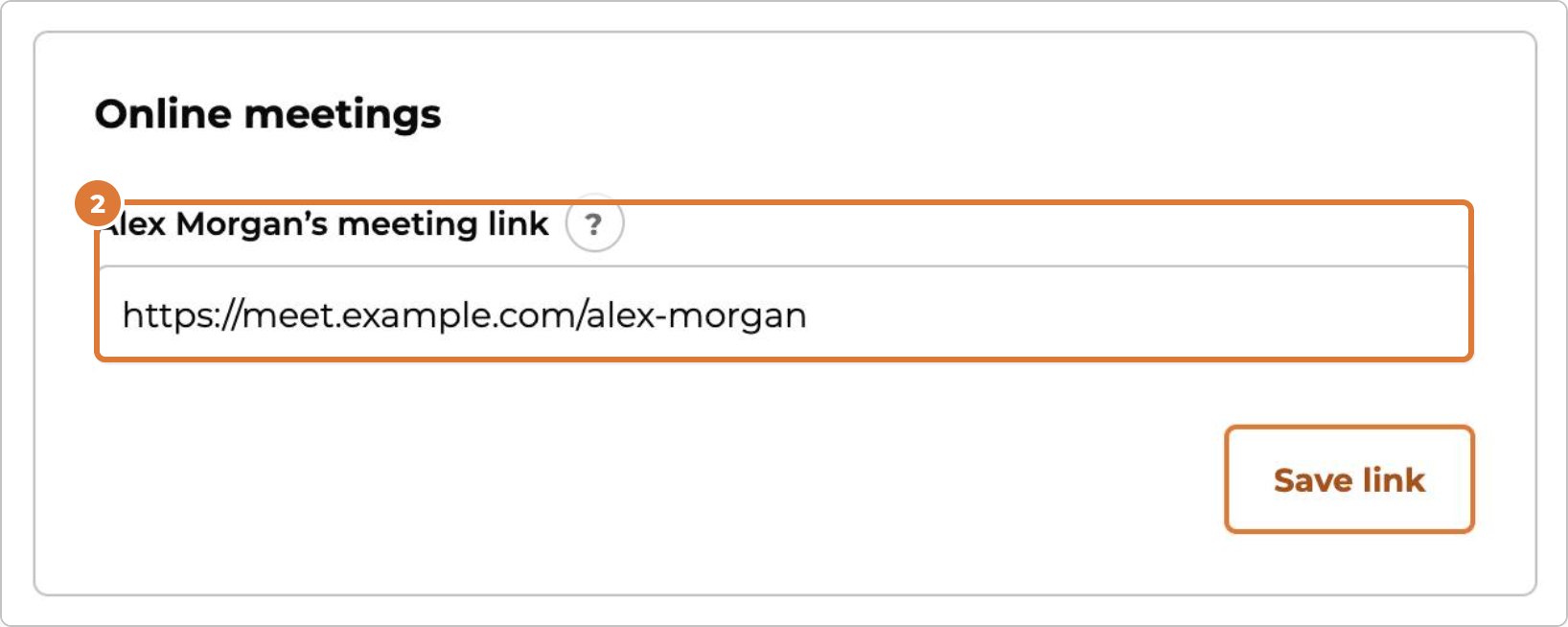
A link that stays the same for every meeting: open Services & team → Team and choose the team member. Under “Online meetings”, paste the link and choose “Save link”.
Step 3
A link that stays the same is the personal meeting room in Zoom, a Google Meet link you reuse, or a fixed room in Whereby or Jitsi. The help pages of Zoom and Google Meet show where to find it.
Step 4
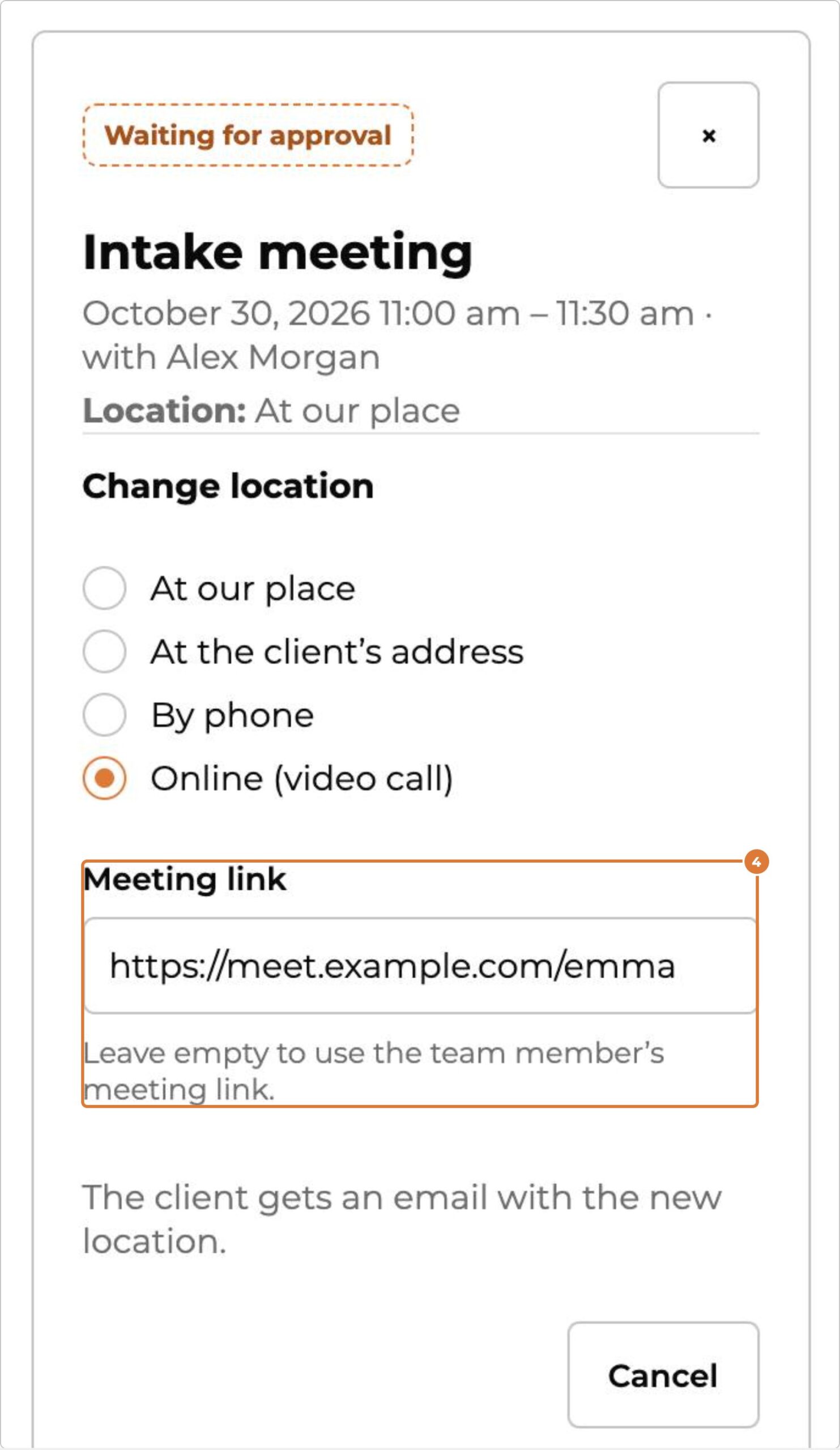
With Microsoft Teams, or a new Google Meet for each meeting, you only get the link once you plan the meeting there. Then fill in the link on the appointment: open it, choose “Change” next to the location, pick “Online (video call)”, paste the link and choose “Save and email the client”.
Step 5
Fill in the link before you confirm the appointment, so the confirmation email has it. Change it later and the client gets an email with the new link.
Tip: Only clients with a booking get the link. It never shows on your website.